Virtual controller
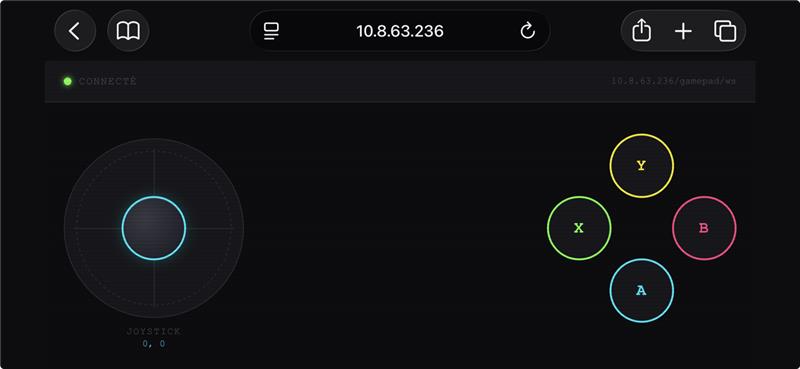
The virtual controller is a web application that emulates a game controller and can be used from any device connected to the same Wi-Fi network as your esieabot. Using the virtual controller then works in the same way as the physical controller. You can use it to create remote control programs for your esieabot in the programming language of your choice.
Installation
To install the virtual controller, run the following command on your esieabot: sudo apt install esieabot-virtual-controller. You should then be able to connect to the virtual controller at the following address: http://ip-of-your-esieabot/esieabot-virtual-controller
Usage
The virtual controller has a 2-axis joystick and 4 buttons. They are numbered as follows:
Axis 0: horizontal joystick axis, from -32 767 to 32 767
Axis 1: vertical joystick axis, from -32 767 to 32 767
Button 0: A button
Button 1: B button
Button 2: X button
Button 3: Y button
Testing the virtual controller
As with the physical controller, you can test the virtual controller using the jstest command. This command is part of the joystick package. If it is not installed on your esieabot, you can install it with the following command:
sudo apt install joystick
Then, you can test the virtual controller with the following command:
jstest /dev/input/js0
Note
If you have both the physical controller and the virtual controller connected at the same time, they will both be recognized as joysticks. You can tell them apart using the ls /dev/input/ command. One controller will be on port “js0” and the other on port “js1”. You can test both using the jstest command by replacing “js0” with “js1” to test the other controller. You can exit the test by pressing Ctrl+C.
Internal operation
The virtual controller works through a program running in the background on your esieabot that emulates a game controller. This program uses the “uinput” library to create a virtual input device that the system recognizes as a game controller. A static web page is then served by the web server built into your esieabot.
Your web browser then communicates via WebSocket with the background program. The communication between the browser and the program goes through NGINX, which acts as both a web server and a proxy for WebSockets.